
Running the Macro
Before you start the macro, make sure you have done the following things:
- Make sure Roblox is in full-screen when running the macro
- Make sure to disconnect any external monitors. They may not work with the macro (only applies to laptops/MacBooks)
- Make sure Roblox is on your main monitor (It is the one with the "1" when in display settings on Windows)
- Claim a hive before starting the macro
macOS:
Warning IMPORTANT: The
run_macro.commandThe file has to stay in the macro folder. Moving it outside the folder will cause the macro to break.
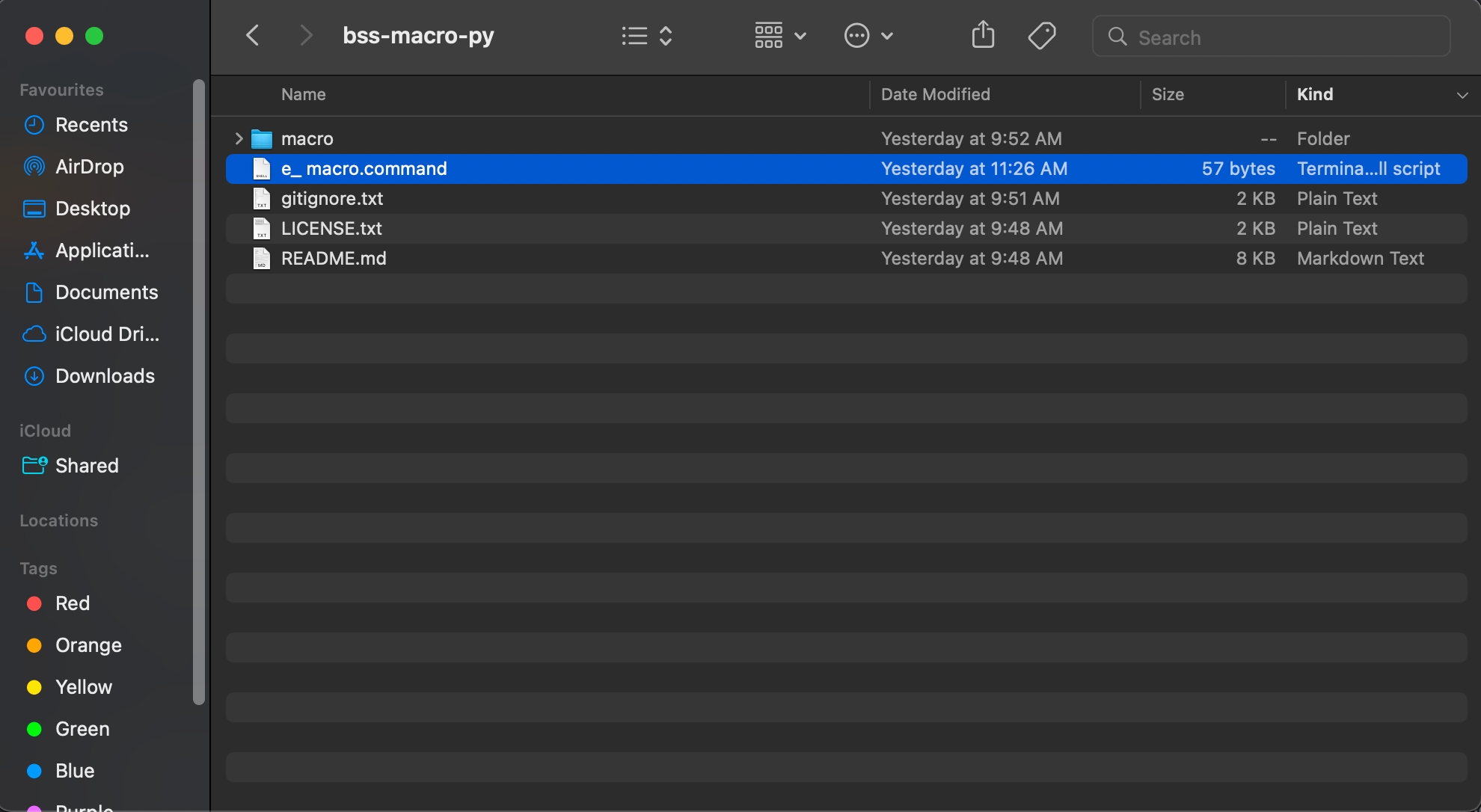
Errors when opening the macro
There are mainly two different errors:
Error: Unidentified Developer
.jpg)
To fix this, right-click run_macro.command and press Open.
Error: Could not verify it is free of malware
.jpg)
Step 1.
Open anyway
Go to System Settings -> Privacy and Security -> scroll all the way down -> click "Open Anyway" for run_macro.command.
Windows:
Double-click on the run_macro.bat file, and it should open up a new window; it will then ask for administration privileges (Needed so the macro can control your keyboard + mouse):
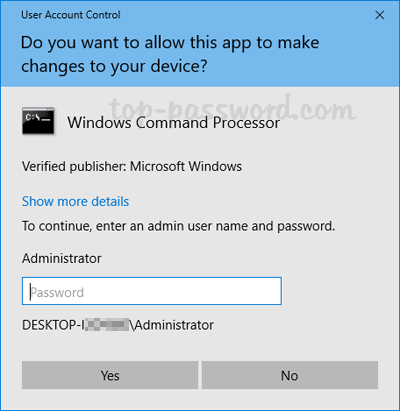
Example image from: top-password.com
Success That's all the steps you need for now. If you need help or have any questions, please visit the Discord server: https://discord.gg/c4XM7XJjrP